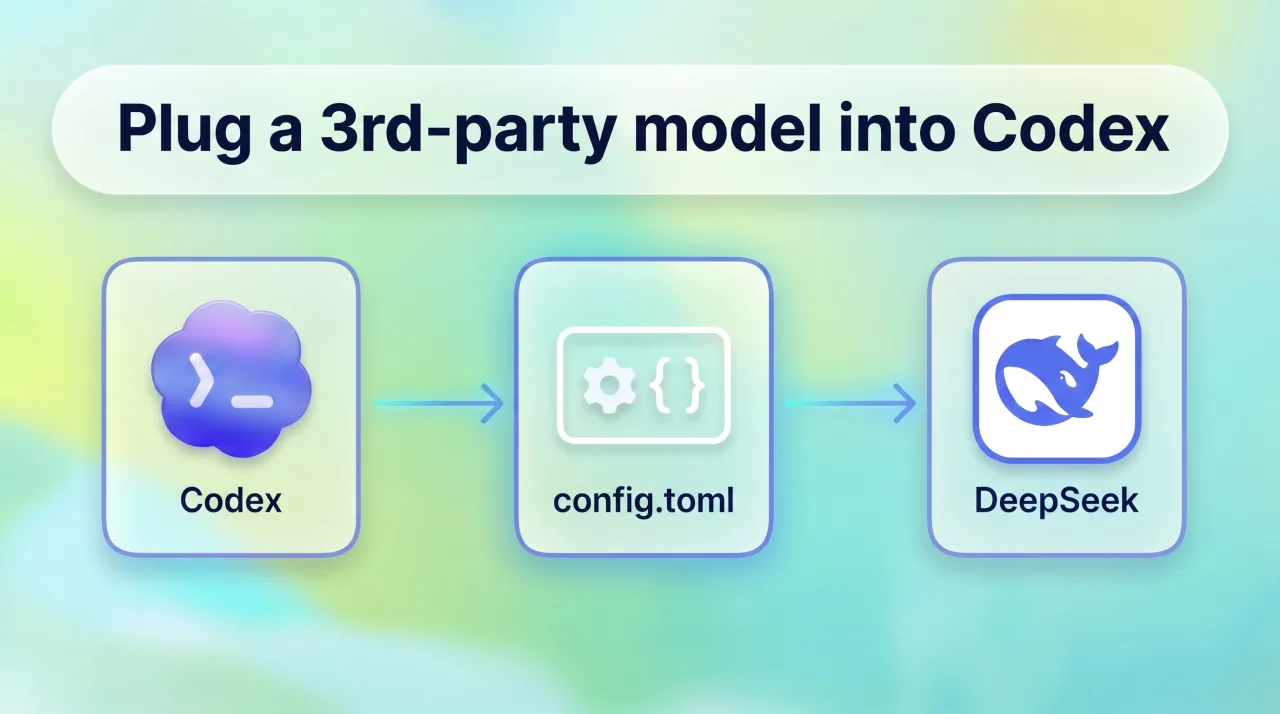
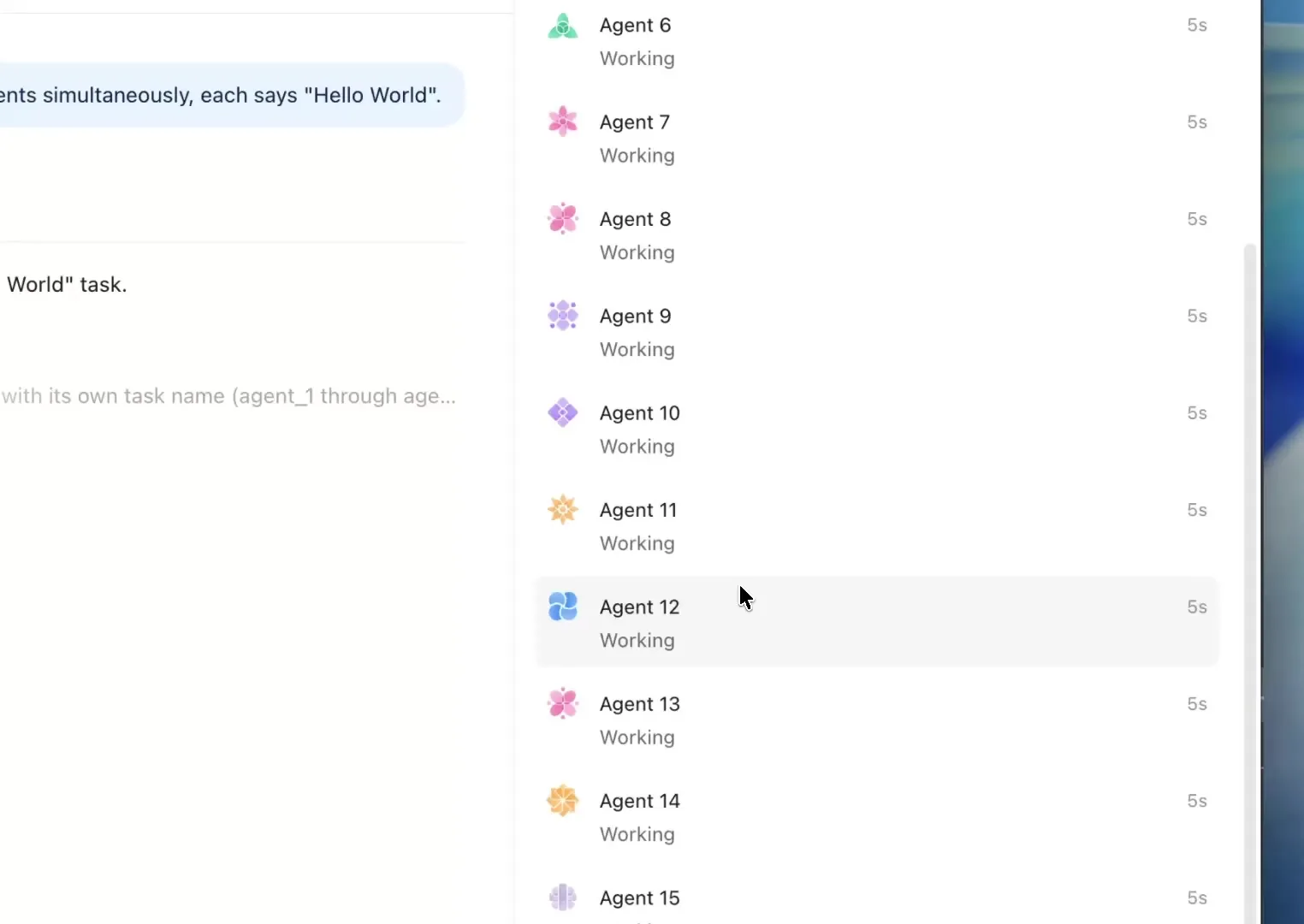
Kimi K3 running inside Codex is genuinely impressive.
In my daily use it outperforms GPT 5.5 by a wide margin. Competitive with 5.6. A 2.8T MoE model with a 1M token context window, sitting at the Fable 5 tier. Musk commented "Impressive." I covered the benchmarks in a previous post, so I won't repeat them here.
Today I'm walking through one thing: how to get Kimi K3 running inside the Codex app.
Codex is my primary coding agent. I use it for daily engineering work. If I can plug the strongest model into it, I will.
Step 1: Get a Kimi API Key
- Go to https://platform.kimi.ai/
- Create an account (phone or email)
- Add some credit. Pricing: $3/M input tokens, $15/M output tokens, cache hits at $0.30/M
- Membership plans are available if you want better value. Top up a small amount first if you just want to test it
- Navigate to API Key management, create a new key, and copy it somewhere safe
Step 2: Install CC Switch
CC Switch is a desktop GUI tool for managing coding agent configs. It supports Codex, Claude Code, Gemini CLI, and more.
Website: https://ccswitch.io/
Download, install, and open it. You never touch a config file manually. Everything happens through the UI. I found it absurdly convenient.
Step 3: Configure Kimi K3 in CC Switch
Open CC Switch and follow these steps:
- Select Codex
- Click add configuration, then choose Kimi
- Fill in the key settings:
| Setting | Value |
|---|---|
| API Key | Paste your key from Step 1 |
| Upstream Format | Chat Completions (routing required) |
| Model Display Name | kimi-k3 |
| Actual Request Model | kimi-k3 |
| Context Window | 1048576 |
Why "Chat Completions (routing required)"?
Codex speaks the OpenAI Responses API (/responses). Kimi's platform exposes the OpenAI Chat Completions format (/chat/completions). Different request bodies, different streaming events, different response structures. Point Codex at Kimi's endpoint directly and you get a 404 on /responses, or broken stream parsing.
Selecting Chat Completions (routing required) tells CC Switch to run a local protocol translation layer. It converts Codex's Responses API requests into Chat Completions calls that Kimi can handle.
Step 4: Enable Local Routing
This step matters. Skip it and the config does nothing.
In CC Switch, open Settings > Routing > Local Routing and turn on the Routing Master Switch.
Open Codex
After setup, open the Codex app.
In the model picker you'll see a custom option. That's Kimi K3.
It shows "custom" instead of the model name. It doesn't affect anything. The model behind it is K3.
Optional: Show "kimi-k3" in the Model Picker
If you want the picker to display "kimi-k3" instead of "custom," you need to patch the Codex app's local files.
This is optional. The workflow works without it. The patch modifies Codex app files on disk, and app updates overwrite the change, so you would need to repeat it after an update.